Google Consent Mode

Google Consent Mode is a framework that allows your website’s Google tags (like Google Ads and Google Analytics 4) to dynamically adjust their behavior based on the privacy choices your visitors make on your cookie banner.
Instead of a hard “on/off” switch for tracking, Consent Mode acts as a smart valve. It tells Google whether it has permission to store cookies for advertising or analytics. If a user says “No” to tracking, Consent Mode ensures your website respects their privacy while keeping your marketing from going completely blind.
Why It Is Essential for PPC Conversion Tracking
If you are running pay-per-click (PPC) campaigns—especially on Google Ads—failing to use Consent Mode is like throwing away part of your ad budget. It is vital for three main reasons:
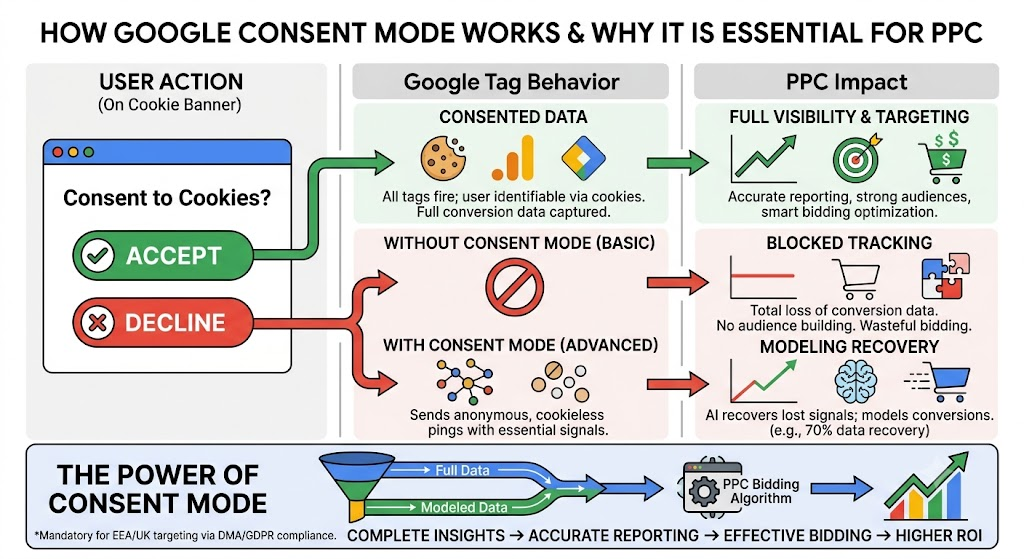
1. It Recovers “Lost” Conversion Data (Via Machine Learning)
When a user rejects cookies on a traditional setup, the tracking script is blocked entirely. If that user later buys something, Google Ads has zero visibility into it. You paid for the click, but you get no credit for the sale.
With Advanced Consent Mode, when a user rejects cookies, the tags don’t just shut down. Instead, they send anonymous, cookieless pings to Google. These pings contain zero personal data but communicate basic signals (like a timestamp, what device was used, and if a conversion happened).
- The Magic: Google uses AI to compare the behavior of your consented users with these cookieless pings. It then models the missing data, recovering up to 70% of the conversions you would have otherwise lost.
2. It Feeds the Smart Bidding Algorithm
Modern PPC relies heavily on automated “Smart Bidding” (like Maximize Conversions or Target ROAS). These algorithms require a steady stream of conversion data to understand which keywords, audiences, and placements actually drive revenue.
- The Risk: If 30% of your users reject cookies and you aren’t using Consent Mode, your reported conversions drop by 30%.
- The Consequence: The bidding algorithm assumes your campaign is performing poorly. It will underbid, restrict your traffic, or shift budget away from keywords that are actually highly profitable, causing your overall ROI to plummet.
3. It is Mandatory for Targeting and Audience Building
Due to strict regulations like Europe’s GDPR and the Digital Markets Act (DMA), Google Consent Mode v2 is strictly required if you want to target users in regions like the European Economic Area (EEA) and the UK.
- Without it, Google will aggressively restrict your ability to track conversions and completely cut off your ability to build personalized remarketing lists. You will lose the ability to serve ads to past website visitors or cart abandoners.
💡 Summary: Basic vs. Advanced Consent Mode
- Basic Mode: Google tags are completely blocked until the user hits “Accept”. If they click “Reject”, you get zero data, and Google has to use a broad, less accurate global model to guess your conversions.
- Advanced Mode: Tags load immediately. If the user clicks “Reject”, the tags instantly switch to sending anonymous, cookieless pings. This gives Google the exact data it needs to build a highly accurate, advertiser-specific model tailored strictly to your website’s actual performance.